
Full Walkthrough
Write 120+ Cold Email Variations in Bulk: Full A.I. System Walkthrough
Before tools, understand what the end state looks like.
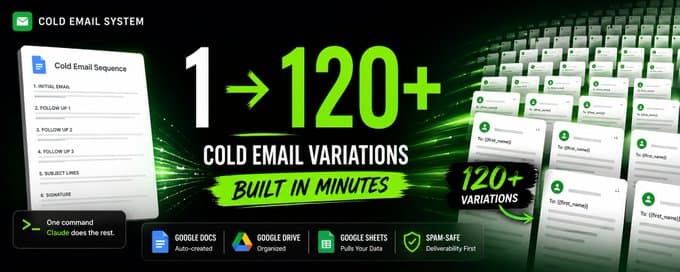
You are building a system where Claude acts as your copy operator. It opens Google Drive, creates a properly named copy doc in the right folder, writes a full cold email sequence inside it with labeled sections, runs every word through a deliverability rules document, applies Instantly-format spintax to each section, writes follow-up variants, writes subject lines, builds a three-line spintaxed signature, and saves the finished doc back to your
Drive - all from a single instruction in Claude.
The value proposition is not "AI writes your emails." It is that Claude operates your entire copy production workflow, inside the tools you already use, following rules that never change.
Three components make this work:
GWS CLI - gives Claude hands inside Google Docs and Drive
Deliverability guardrails - a rules document Claude loads before writing any copy
Spintax pass - a structured second pass that adds variation after the copy is clean
Cold email copy is a grind.
Not the strategy part. Not figuring out your angle or your ICP or your CTA. The production part. The part where you already know what you want to say but you need multiple variations of it, a follow-up, spintaxed subject lines, a three-line signature block, and the whole thing needs to clear a spam filter before it touches an inbox.
That is the part that eats hours. And for most people, it still happens manually.
Last week that changed. Claude wrote over 120 cold email variations for a single campaign offer - organized into properly named Google Docs, stored in the right Drive folder, with spam-clean spintax on every body block, every follow-up, every subject line, and every signature.
Under 14 minutes of actual setup. And the system runs again on every future campaign without starting from scratch.
This article walks you through the entire architecture.
The actual setup: GWS CLI, deliverability guardrails, spintax structure, and how to scale from one copy doc to a full library of them in bulk.
Part 1: What Is GWS and Why Does It Matter Here
GWS stands for Google Workspace - Docs, Drive, Sheets, Gmail, Calendar.
GWS CLI (gws) is an open-source command-line tool maintained by the Google Workspace team on GitHub. It gives you direct API access to every Google Workspace service from your terminal. You run commands like:
gws sheets spreadsheets values get --params '{"spreadsheetId": "...", "range": "A1:E50"}'
gws docs documents create --json '{"title": "My Doc"}'
gws drive files list --params '{"pageSize": 10}'
When Claude has access to gws, it runs those same commands as part of executing your instructions. You tell Claude what you want in plain language. Claude constructs and runs the gws commands on your behalf.
This is not an MCP server. There is no plugin to configure. GWS is a plain CLI tool that Claude invokes via Bash - the same way you would run it yourself in terminal.
Installing GWS CLI
Repo: github.com/googleworkspace/cli
Install via Homebrew (macOS - recommended):
brew install googleworkspace-cliOr via npm:
npm install -g @googleworkspace/cliAuthenticate:
gws auth setup    # creates GCP project, enables APIs, handles OAuth login
gws auth login    # for all subsequent logins
If you prefer manual setup: create an OAuth 2.0 credential (Desktop app type) in the Google Cloud Console, download the JSON, save it to ~/.config/gws/client_secret.json, then run gws auth login.
Verify the connection:
gws drive files list --params '{"pageSize": 5}'Your recent Drive files return as JSON. If they do, you are live.
Giving Claude Permission to Run GWS
Claude does not run arbitrary commands by default. You whitelist exactly which command namespaces it is allowed to call by adding a permission allowlist to your project's .claude/settings.local.json file:
{
"permissions": {
"allow":
"Bash(gws drive:*)",
"Bash(gws sheets:*)",
"Bash(gws docs:*)"
}
}Those three lines are the entire configuration. Claude now has pre-approved access to any gws drive, gws sheets, or gws docs command. No prompts, no approval gates on every run. You will not be asked each time Claude creates a doc or reads a sheet - it just executes.
Part 2: How Copy Lives in Google Drive - And Why It Comes After the List
Before writing a single word of copy, two things need to be true: your folder architecture is set up, and your list already exists.
That second point matters more than most people realize.
The List Comes First
The copy always comes after the list is built. Always.
The reason is simple: you cannot write relevant copy until you know exactly who you are writing to. The list thesis - the audience, the industry, the company profile, the decision-maker title - is what determines the angle, the offer framing, the opener, and every custom variable in the sequence.
Writing copy before the list is built means writing copy for a vague audience and retrofitting it later. That is how you end up with generic emails that perform like generic emails.
This is especially true for our operation because of how our list data works.
We buy data in bulk. Rather than running one-off Apollo or Clay exports campaign by campaign, we maintain our own internal lead database - built on Supabase, housing billions of organized records across industries, company sizes, geographies, and decision-maker titles. Think of it as a private Apollo instance that we control entirely.
When it is time to build a list for a new campaign, AI connects directly to Supabase, queries against the campaign's audience criteria, and pulls the records to create a new list on the spot. No manual exporting. No third-party seat limits. The list exists in minutes, properly scoped to the exact audience the campaign is being built for.
That list determines everything that happens next - including the copy.
The Folder Structure
Once the list exists, the campaign infrastructure goes up. The working folder for your campaign system has four subfolders:
Campaign Workspace Root/
├── Working Lists/       ← campaign list sheets during the build phase
├── Launch Lists/        ← finalized sheets ready for import
├── Copy Docs/           ← all copy documents live here
└── Logs/                ← activity logs and audit records
All copy docs go into Copy Docs. When Claude creates a copy doc and saves it to Drive, the target is the Copy Docs folder ID. You can find your folder IDs from the URL when you open the folder in Drive - it is the string of characters after folders/.
This structure is ours. It is nuanced to how we operate - the way lists move from working to launch, the way copy docs are separated from list artifacts, the way logs track what happened on every campaign. You do not have to replicate it exactly. What matters is that you have a system and that Claude knows where everything lives. Whatever structure you commit to, document it so Claude can navigate it without ambiguity.
The Copy Doc Naming Convention
Our naming convention encodes the offer, the date, and a campaign ID into every doc title:
Copy | Offer / Audience Label | Month, Day ordinal, Year | Campaign IDExamples using a demand generation offer:
Copy | Demand Gen - Regional Banks | April, 20th, 2026 | DG001
Copy | Demand Gen - Credit Unions | April, 22nd, 2026 | DG002
Copy | Demand Gen - Non-Bank Lenders | May, 1st, 2026 | DG003
The date and campaign ID are not optional. When you are running multiple campaigns simultaneously, these identifiers are what let Claude locate, reference, or update the right doc without ambiguity. Two campaigns with similar offer names and no date or ID in the title become a disambiguation problem fast.
Again - this is our pattern. Build one that reflects how your business is organized. The principle is the same regardless: the name should be enough to identify the exact campaign, the audience, and when it was built without ever having to open the file.
The Copy Doc Structure
Every copy doc has a consistent structure. The sections, in order:
Campaign name: Full name with date and ID
Campaign ID: ID
Offer: One-line description
Audience: Who this goes to
Variables used: List of every custom variable in the copy
---
Subject line options:
SL1: variant
SL2: variant
SL3: variant
SL4: {{firstName}} - {{subject_line}}
---
Step 1 - Initial Email
Full body copy with spintax applied inline
---
Step 2 - Follow-Up
Variant 1a: Follow-up copy
Variant 1b: Follow-up copy - alternative angle
---
Timing notes:
- Follow-up: +1 business day after initial email
---
Operational notes:
Variable fallbacks, send platform notes, anything time-sensitive
When Claude creates this doc via gws, it creates it with these headers already in place and fills each section. The output is always the same shape - predictable, auditable, and ready to load into your sending platform without reformatting.
Intentional Gaps: How We Personalize at Scale
Here is the part that most people miss when they look at our copy docs: they are not finished when the copy is written.
The copy is intentionally left with holes.
Those holes are custom variables - placeholders in the copy that get filled by AI before send. The variable might be a one-liner about what the company does, the market they serve, a product they offer, or a specific reason this outreach is relevant to them. It varies by company. It is specific to each record on the list.
The way those variables get filled: we scrape company domains cheaply through Cloudflare Browser Rendering. Each company's website gets pulled, distilled into a few key signals, and written back into the lead sheet as a custom variable column. That column then maps directly into the copy at send time.
This is how we send to tens of thousands of businesses that are completely different from one another - different industries, different sizes, different markets - and still have each email read as relevant and specific to that company. The spine of the copy is consistent. The custom variables make it personal.
You do not need millions of dollars of personalization infrastructure to do this. You need Cloudflare Browser Rendering, a structured enrichment pass, and copy that is written to accept variable inputs cleanly. We have a full walkthrough on setting up the Cloudflare scraping layer here:
Claygent Replacement
The takeaway: write the copy after the list, build the variables from the list, and let the scraping fill the gaps. That is the full loop.
Want This Built For You?
Simply inquire on our website and talk to our team.
Reading about a system is one thing. Having someone who runs it daily sit down and build it with you is another.
At InfraSuite, we offer Bronze, Gold, and Platinum packages that come with Outlook mailboxes included - and more importantly, direct access to us. Every package includes consulting tailored to your specific offer and a done-with-you implementation of the exact systems covered in this article: the GWS CLI setup, the deliverability guardrails, the spintax workflow, the copy doc architecture, and the full pipeline from raw list to live campaign inside your sending tool.
We have done this for our existing clients. The people on our platform are collectively sending millions of emails per month. We run this infrastructure ourselves - everything we teach, we use. If you want to compress weeks of trial and error into a single implementation sprint with people who already have the reps, that is what the packages are for.
Need cold email volume?
InfraSuite is built for teams that rely on cold email as a core revenue channel and need stable, high-performing Outlook mailboxes.
You subscribe to a proven Microsoft-based sending environment that’s already configured for cold outreach. We handle provisioning, DNS, mailbox setup, and deliverability hygiene. A completely handsfree and automated solution-so you can focus on campaigns, clients, and revenue instead of infrastructure risk.
InfraSuite is a long-term sending layer designed to hold up under daily volume and compound sender reputation over time.
Learn more by clicking here.
Why Operators Choose InfraSuite
When outbound is tied directly to revenue, fragile infrastructure becomes a liability.
InfraSuite is designed to be the boring, dependable part of your stack:
Stable inbox placement across Outlook and Google
Fewer resets, fewer domain swaps
Capacity ready when clients sign
Calm, competent support when something looks off
You bring the domains. You keep your sending tools. We keep the mailboxes healthy.
Compare pricing
Part 3: The Spam Guard - Build It Once, Run It on Everything
This is the part most people skip. It is also the most direct explanation for why emails land in spam.
Think of your spam guard as a water filter. Everything that comes out of your copywriting process - every variant, every subject line, every spintaxed phrase - passes through it before it is finalized. If a banned token is in the water, it gets caught before it reaches the output. The copy that comes out the other end is clean, every time, without you having to manually audit it.
The three things that must always pass through the filter:
Copy variants - your initial email body in every form
Subject lines - often the most overlooked; one spam word kills deliverability before the body is ever read
Spintax - this is where the risk is highest
That last one is worth dwelling on. When you spintax, you are adding words - sometimes dozens of new phrases across three or four zones per email. More words means more surface area for spam triggers to sneak in. A clean original draft can produce a flagged spintax variant if the new phrases introduced during spinning were not checked. The spam guard must run after spintax, not just before it. The hit rate on catching at least one issue in the spintax pass alone is around 94%.
Build This as a Skill, Not a Prompt
A prompt you paste once is gone when the session resets. A skill is permanent.
When you build the spam guard as a Claude skill, it becomes a layer that every copy-related task inherits automatically. You are not reminding Claude to check for spam words. You are not hoping it remembers the rules from earlier in the conversation. The skill fires whenever copy is being produced - period.
Here is the full skill prompt. Paste this into Claude and tell it to create the skill file for you:
Create a skill file called spam-guard at the path skills/spam-guard/SKILL.md in my project. Use the following as the full skill content:
Here is the replacement paste:
I want you to build a spam guard skill for my project.
Before writing the skill file, go pull the spam word lists from these
three sources and read them in full:
1. https://www.activecampaign.com/blog/spam-words
2. https://mailtrap.io/blog/email-spam-words/
3. https://www.lemlist.com/blog/spam-trigger-words
Scrape every spam word and phrase listed across all three pages.
Deduplicate across sources. Combine into one master banned list.
Then create a skill file at skills/spam-guard/SKILL.md using this
exact structure, with the combined scraped list filling the banned
words and banned phrases sections:
---# Spam Guard - Cold Email Deliverability Skill## PurposeScreen every piece of outbound copy before it is finalized.
Applies to copy variants, subject lines, and all spintax output.
Run after every copy pass - including after spintax is applied.
## Banned Single WordsInsert full deduplicated word list scraped from all three sources
## Banned PhrasesInsert full deduplicated phrase list scraped from all three sources
## Substitution Maploan / loans → lending groups / paper / book / portfolio
credit → structured solutions / capital / financing
cash → liquidity / working capital
insurance → coverage groups / procedure-based billing
debt → turnaround advisory firms
rate → rewrite - describe the specific event instead
deal → situation / structure / transaction
access → use / leverage / put to work
get → reach / find / land / receive
call → conversation / chat / brief intro
free → open to a short conversation / happy to send details
new → remove or rewrite
now / today → remove - implies urgency
results → rewrite with a specific outcome instead
problem → rewrite with a specific operational description
## Formatting Rules
- No em dashes (-) - use a plain hyphen or restructure
- No ALL CAPS anywhere in the body or subject line
- No more than one exclamation mark per email
- No greeting prefixes (Hi, Hello, Hey) before {{firstName}}
- No third-person company references like "Company offers" or "Company provides"
## Pre-Generation GateBefore writing or finalizing any copy output:
1. Scan every word against the banned single word list
2. Scan every phrase against the banned phrase list
3. If a banned token is found, rewrite using the substitution map
4. Do not flag the banned word to the user - silently fix and deliver clean output
5. After spintax is applied, run the full scan again on all generated variants
## Token Safety Rules
- Punctuation does not neutralize a banned word (cash. is still banned)
- Hyphenation does not neutralize a banned word (cash-cycle still contains cash)
- Word variants are banned too (cost → costs, costing are all banned)
- If a banned word appears in a company name, rewrite the displayed name
while keeping it recognizable
## Checklist Before Any Copy Is Finalized
-   Subject lines scanned for banned words and phrases
-   Body copy scanned for banned words and phrases
-   Spintax output scanned - all generated combinations checked
-   No em dashes, ALL CAPS, or multiple exclamation marks present
- Copy reads as authentic communication, not a promotion---After creating the file, tell me:
- How many unique banned words were pulled across all three sources
- How many unique banned phrases were pulled
- Any words that appeared on all three lists (highest risk - flag these)
That prompt makes Claude do the research first, then build the skill from live data instead of a static hardcoded list. The cross-source flagging at the end gives them a priority tier automatically - words that show up on all three lists are the ones to treat as absolute hard bans.
Once Claude creates that file, add one line to your CLAUDE.md:
Before writing any cold email copy, load and apply the spam guard from skills/spam-guard/SKILL.md. This applies to copy variants, subject lines, and all spintax output - every session, every campaign.
Now the skill is permanent and in scope for every future run.
After You Have Variants - Run a Manual Check
Even with the spam guard running, do a manual pass once your variants are done. The tool we use for this:
Mailmeteor Spam Checker - paste each variant in, let it flag anything, and review the output.
When it catches something, do not just fix the copy and move on. Show Claude what you changed and why, then tell it to update the skill:
"The spam checker flagged word in this context. I replaced it with replacement. Update the spam guard skill to add word to the banned list and note replacement as the preferred substitute."This is how the skill improves over time. Every flagged word that gets added to the skill is one that can never slip through again on any future campaign. The skill compounds - the longer you run it, the cleaner your output becomes.
The Full Article on Building This Skill
We wrote a dedicated piece that walks through the full spam guard skill setup, the philosophy behind it, and how to apply it across your entire copy workflow:
Cold Email Copy Skill: Spam Guard
Read that before you move to the spintax step. The guard needs to be in place before variation is added - not after.
Part 4: Writing the Copy - Three Ways to Do It, One Right Order
Before a single word gets written, understand that there are three distinct ways to produce cold email copy in this system. Which one you choose determines how much AI does, how much you do, and how much QA is required on the back end.
The Three Copy Processes
Process 1 - Manual with AI Assist + Custom Variables (Recommended)
You write the copy. AI helps you refine it. The document is finished with intentional gaps - {{custom_variables}} that act as placeholders for company-specific detail. Those gaps get filled after the list is built, using a scraper that pulls context from each company's website and writes the values directly back into the lead sheet.
This is the best option. The copy quality is highest because a human is directing the angle, the framing, and the voice. The personalization is genuine because the variables are filled from real company data, not invented. And the scraping runs cheaply at scale - thousands of unique values filled without touching each row manually.
Full walkthrough on setting up the variable fill scraper: Cold Email Auto-Fill Variables
Process 2 - AI Writes the Full Doc, Scraping Fills the Variables
Same structure as Process 1 - copy doc with {{custom_variables}} and all - except AI writes the entire document from your brief without you drafting the initial copy. You review, approve, and then run the same scraping workflow to fill the variables from the lead list afterwards.
This works well when you have a clear brief, a proven offer frame, and you trust the spam guard is running. The output quality is slightly lower than Process 1 because the human directorial layer is reduced, but the workflow is faster and still produces personalized, variable-driven copy at the end.
Process 3 - AI Writes Row-Level Copy Inside the Lead List
This is a fundamentally different approach. Instead of one copy doc with shared body text and variables, every row in the lead list gets its own unique copy - opener, body, or both - written by AI based on that prospect's specific business. The copy lives in columns on the sheet, not in a Google Doc.
Those columns map to custom variables in your sending tool.
This needs the most skill and the most attention. You are not reviewing one document. You are QA-ing thousands of rows of unique AI-generated copy, checking each one against the spam guard, verifying the personalization is accurate, and correcting anything that missed. The upside is maximum relevance at the row level. The downside is the operational overhead scales linearly with your list size.
Start with Process 1. Move to Process 3 once you have the QA workflow to support it.
The Right Order Regardless of Which Process You Use
Write clean first. Spintax second.
This does not change across any of the three processes. Writing and spintaxing simultaneously produces unreadable, inconsistent copy. Spintax forces you to write multiple versions of a phrase before you know whether the sentence structure even works. You end up with six variants of a sentence that should have been rewritten anyway.
Pass 1 - Write clean copy Full email, clean prose, no spintax syntax. Write it as if you were sending it to one person. The spam guard runs in the background during this pass. Leave your {{custom_variables}} as blank placeholders - do not try to fill them yet.
Pass 2 - Apply spintax Go back through the clean copy and identify the phrases that should vary. Apply spintax at the phrase level. Three to four zones per email. The spintaxed version lives as its own labeled section in the copy doc.
The Proximity Method
Full article: The Proximity Method
Before Claude writes a single word, it needs a positioning frame.
The Proximity Method defines proximity as the distance between your message and the concrete outcome the prospect actually wants. The closer your copy is to the outcome - not the service, not the process, not the methodology - the higher your reply rate.
The principle applies regardless of the offer. Write toward the result the reader wants, not toward the mechanism you use to deliver it.
The Opener Rule
One hard rule across every process: the opener starts with the raw first-name variable and nothing before it.
{{firstName}},Not:
Hi {{firstName}},
Hey {{firstName}},
Hello {{firstName}},
{{firstName|there}},The greeting prefix is a detectable pattern. Inbox filters recognize it. More importantly, it reads like marketing copy instead of an email a human actually sent. Drop it entirely. The comma-after-name opener reads naturally and passes cleanly.
No fallback syntax on the opener. If the first name field is missing, the email should not send.
A Full Copy Example - Clean Draft Before Spintax
This example is a referral partner outreach targeting lenders and factors who provide AR and PO financing:
{{firstName}},We have a book of business that constantly needs support with AR and PO financing.
Can you take on more clients?
{{accountSignature}}
{{RANDOM|Agency Name|Agency Name, Inc.|Agency Name Group}}
{{RANDOM|City, State - City, Country|State - Country|City, Country - City, State}}
Three lines of body copy. No spam words. No greeting prefix. Proximity is as tight as it gets - the first sentence tells them exactly what they are getting (a referral flow), the second asks one low-friction question. There is nothing to interpret or translate. The reader either has capacity or they do not.
That is a Process 1 email without variables filled yet. In a real campaign, a {{custom_variable}} might sit between the first and second line - a one-liner about the types of businesses in the book, scraped from the prospect's own website to match what they already finance. The scraper fills that column. The copy doc never changes.
Part 5: Spintaxing the Copy - The Skill, The Rules, and How to Build It
Spintax is not decoration. It is the mechanism that keeps your emails from being fingerprinted by inbox providers across thousands of sends. When every email from your domain looks identical, the pattern is detectable. When every send is drawn from hundreds or thousands of possible combinations of the same message, the pattern breaks.
But spintax is also the highest-risk step in the copy process. Every new word you introduce while spinning is a word that must pass through the spam guard. You are adding surface area - more words, more phrases, more combinations. The hit rate on catching a spam trigger inside spintax variants is around 94%. That means if your spam guard is not running after spintax - not just before it - you are almost certainly shipping flagged copy.
The right architecture: spam guard skill feeds into spintax skill. The spintax skill outputs only combinations that have already cleared the banned word check. They are not separate passes. They are one pipeline.
The Spintax Format
Instantly's spintax format:
{{RANDOM|option one|option two|option three}}RANDOM is always all caps
No spaces between the pipes and the words
Minimum two options per block
Wraps the full set in {{ and }}
At send time Instantly picks one option at random per send. The goal is to produce as many natural, grammatically clean combinations as possible from each sentence - not to make every send feel like a different email.
The Eight Rules
These come directly from the spintax skill. Every one is non-negotiable.
Rule 1 - Every sentence's first word must be spintaxed
Spam filters fingerprint the beginning of every sentence. No sentence should start with a fixed, unspun word. If the sentence starts with a custom variable like {{firstName}}, leave the variable alone and spintax the first meaningful word immediately after it.
Sentence starts with a custom variable - spintax the next word
{{firstName}}, {{RANDOM|thought|figured}} this was worth a note.Normal sentence - spintax the first word
{{RANDOM|We have|We're sitting on|We work with}} a steady pipeline...Rule 2 - Spin every natural variation point, not just the first word
Rule 1 is the floor. After the first word, scan the rest of the sentence and spin every verb, noun, modal, adjective, and short phrase that has a natural synonym. A sentence where only two words are spun and ten words are fixed is under-spun.
Target: no consecutive run of more than four or five fixed words in any sentence unless they are proper nouns or custom variables.
Rule 3 - Handle articles inside the block
If your options have mixed vowel and consonant starts and a fixed a or an precedes them, pull the article inside the block so every combination is grammatically correct.
Wrong - produces "a active" for one combinationruns a {{RANDOM|hands-on|active}} process
Correct - article is part of each optionruns {{RANDOM|a hands-on|an active}} process
Rule 4 - Keep blocks short
One to three words per option. You are not swapping whole sentences - you are varying the vocabulary. Long clause swaps degrade quality.
Rule 5 - Minimum two variants, no hard maximum
Every block needs at least two options. Do not add weak options just to inflate the count. Quality beats quantity.
Rule 6 - Custom variables are untouchable
Never wrap a custom variable inside a spintax block. Never include one as an option. Treat them as fixed anchors and spintax only the words around them. Custom variables already produce per-row variety - spintax works around them.
Correcta {{RANDOM|hands-on|targeted}} process for {{sector_relevantfundingtype}}
Wrong
{{RANDOM|{{sector_relevantfundingtype}}|commercial operators}}
Rule 7 - Every new word introduced by spintax must clear the spam guard
The banned word list applies to every word you introduce through spintax options - not just the original copy. Word variants are banned too. call and calls and calling are all banned. Check the root and all inflected forms.
Rule 8 - No em dashes
Do not introduce em dashes anywhere in spintax options. Use commas, hyphens, or restructure.
The Two-Phase Execution
Phase 1 - Spintax Agent
Before writing a single block, read the full copy from start to finish. Understand the point of view, the register, the tone, the pronouns in use. Then apply spintax to every section - initial email, all follow-up steps, subject lines - following all eight rules.
Phase 2 - Audit Agent
After spintax is written, generate 50 to 100 random fully-parsed combinations. Read every one as a complete email. Check each for grammatical correctness, article agreement, natural flow, and zero banned words in any combination. If any combination fails, fix the offending block and re-run.
Only output after all combinations pass cleanly.
This is not optional. The audit is what separates spintax that works from spintax that reads like a broken template on some sends.
Combination Math
After spintaxing, compute the total possible combinations:
total_combinations = product of (number of options in each block)Target: roughly three to four times your list size. If you have 1,000 contacts, aim for 3,000 to 4,000 possible combinations. You will almost certainly exceed that with proper coverage - which is fine. Quality always wins over hitting a specific number.
The Example - Before and After
Clean draft:
{{firstName}},We have a book of business that constantly needs support with AR and PO financing.
Can you take on more clients?
{{accountSignature}}
{{RANDOM|Agency Name|Agency Name, Inc.|Agency Name Group}}
{{RANDOM|City, State - City, Country|State - Country|City, Country - City, State}}
After spintax - Phase 1 applied, all eight rules followed:
{{firstName}},
{{RANDOM|We have|We're sitting on|We work with}} a {{RANDOM|book of business|steady pipeline|consistent pipeline}} that {{RANDOM|constantly|regularly|consistently}} {{RANDOM|needs|requires}} support with AR and PO {{RANDOM|structured solutions|capital solutions|factoring support}}.
{{RANDOM|Can you|Are you in a position to|Do you have room to}} take on {{RANDOM|more clients|additional relationships|more volume}}?
{{accountSignature}}
{{RANDOM|Agency Name|Agency Name, Inc.|Agency Name Group}}
{{RANDOM|City, State - City, Country|State - Country|City, Country - City, State}}
Combination count on the body alone: 3 × 3 × 3 × 2 × 3 × 3 × 3 = 1,458 combinations from two sentences. All grammatically clean, all spam-word free, all on the same register.
The signature spintax runs independently and multiplies on top of that.
Building the Spintax Skill - Copy and Paste This
Paste the following into Claude and it will create the full spintax skill file for your project. The spam guard is wired in as a prerequisite - it runs on every new word before it is accepted as a spintax option:
I want you to create a spintax skill file for my project at skills/cold-email-spintax/SKILL.md.
Before writing any spintax, this skill must load and apply the spam guard from skills/spam-guard/SKILL.md. Every new word introduced through a spintax option must clear the spam guard banned word list before it is used. This is non-negotiable - the spam guard feeds into this skill.
Use the following as the full skill content:
# Cold Email Spintax Skill## PurposeTake pre-written cold email copy and produce a spintaxed version in
Instantly format. Applies to the initial email, all follow-up steps,
and subject lines. Always runs after the spam guard skill. Always
executes in two phases: write then audit.
## Spintax Format
{{RANDOM|option one|option two|option three}}
- RANDOM is always all caps
- No spaces between pipes and words
- Minimum two options per block
- Wraps the full set in {{ and }}
## The Eight RulesRule 1 - Every sentence's first word must be spintaxed.
Spam filters fingerprint sentence starts. No sentence starts with a
fixed unspun word. If the sentence starts with a custom variable like
{{firstName}}, leave the variable and spintax the first meaningfulword immediately after it.
Rule 2 - Spin every natural variation point, not just the first word.
After the first word, scan the rest of the sentence and spin every
verb, noun, modal, adjective, and short phrase that has a natural
synonym. Target: no consecutive run of more than 4-5 fixed words in
any sentence unless they are proper nouns or custom variables.
Rule 3 - Handle articles inside the block.
If options have mixed vowel and consonant starts and a fixed "a" or
"an" precedes them, pull the article inside the block.
Wrong: runs a {{RANDOM|hands-on|active}} process
Right: runs {{RANDOM|a hands-on|an active}} process
Rule 4 - Keep blocks short.
1-3 words per option. Never swap whole sentences.
Rule 5 - Minimum two variants per block.
Do not add weak options to inflate count. Quality beats quantity.
Rule 6 - Custom variables are untouchable.
Never wrap a custom variable inside a spintax block. Never include
one as an option. Spintax only the words around them.
Right: a {{RANDOM|hands-on|targeted}} process for {{custom_variable}}
Wrong: {{RANDOM|{{custom_variable}}|generic alternative}}
Rule 7 - Every new word introduced by spintax must clear the spam guard.
Load skills/spam-guard/SKILL.md and check every new word before
accepting it. Word variants are banned too - if the root is banned,
all inflected forms are banned.
Rule 8 - No em dashes.
Use commas, hyphens, or restructure. Never introduce em dashes.
## Priority Order1. Grammatical correctness - every possible combination must be correct
2. Clarity - natural and unambiguous in every combination
3. Variation count - never sacrifice 1 or 2 to hit a number
## Combination MathAfter spintaxing, compute:
total_combinations = product of (number of options in each block)Target: roughly 3-4x your list size in total combinations.
## Two-Phase ExecutionPhase 1 - Spintax Agent
Read the full copy holistically before writing a single block.
Understand the POV, register, tone, and pronouns. Then apply spintax
to every section following all eight rules.
Phase 2 - Audit Agent
Generate 50-100 random fully-parsed combinations. Read every one as
a complete email. Check each for:
- Grammatical correctness
- Article agreement (a vs an)
- Natural conversational flow - no formal or stilted alternatives
- Zero banned words in any combination (including word variants)
If any combination fails, fix the offending block and re-run.
Only output after all combinations pass cleanly.
## Output ReportAfter completing, report:
- Total {{RANDOM}} blocks applied
- Total possible combinations (the product)
- List size and combinations-to-list ratio
- Audit result: combinations tested, any that failed and how fixed
- 3-5 randomly parsed sample combinations for review
## What This Skill Does NOT Do
- Does not write new copy - only spintaxes existing copy
- Does not fill custom variables - that is a separate scraping step
- Does not modify the original copy sections - only adds spintax sections
- Does not import to the sending platform - that is a separate step---After creating the file, confirm the skill was created and tell me
where the spam guard dependency is wired in within the skill.
Once both skills exist, add these two lines to your CLAUDE.md so they are always active:
Before writing any cold email copy, load the spam guard from
skills/spam-guard/SKILL.md.
Before applying spintax to any copy, load the spintax skill from skills/cold-email-spintax/SKILL.md. The spam guard must be loaded first - the spintax skill depends on it.
The two skills now operate as one pipeline. Every word that enters spintax has already been cleared. Every combination that comes out has been audited. That is the standard to hold every campaign to.
Part 6: Follow-Ups - What the Data Actually Says
Follow-ups are where most people either leave replies on the table or tank their sender reputation trying to chase them. Getting this right matters more than almost any other part of the sequence.
Let us start with what the data shows, because it runs counter to what feels right.
Two Types of Follow-Ups
There are two philosophies for a follow-up:
The Bump Short. One or two lines. Does not re-explain the offer. Does not introduce new value. Assumes they saw the first email and asks them to respond to it. The entire job is to surface the original email back into their attention.
{{firstName}} - {{RANDOM|Did you have|Have you had}} {{RANDOM|a moment|a minute}} to {{RANDOM|take a look|look}} at {{RANDOM|the last email I sent you|my last email}}?
{{accountSignature}}
{{RANDOM|Agency Name|Agency Name, Inc.|Agency Name Group}}
{{RANDOM|City, State - City, Country|State - Country|City, Country - City, State}}
The Value Extension Introduces something new - a piece of social proof, a risk reversal, a different angle on the offer, a relevant data point. Longer than a bump. Gives the reader a new reason to engage if the first one did not land.
What the Data Says (and Why We Scaled Bumps)
Honestly? We do not love bump follow-ups. There is something that feels thin about a one-liner that just says "did you see this." It does not feel like it should work. It does not feel like it is adding value.
But we focus on data, not preference. And across every campaign we have tracked - and we have run a lot of them - the bump consistently outperforms the value extension as a follow-up to a cold initial email.
Looking at our own campaigns: in every single one, Step 1 (the follow-up) generates a higher reply rate per send than Step 0 (the initial email). In some campaigns it is nearly 3x the initial reply rate. Not because the follow-up copy is better written. Because it hits the inbox of someone who already processed the first email, and a single short line is enough friction to get a response.
We scaled bumps because the data told us to. If your data says something different, listen to your data.
The Important Caveat: Reply Rate vs. Positive Reply Rate
A bump will increase your reply rate. That is not always the same as increasing your positive reply rate.
If your bumps are surfacing the original email and getting people to say no faster - that is actually still useful. You want opt-outs. Clean opt-outs mean your list is self-qualifying. But you need to know whether the incremental replies you are getting from bumps are positive engagements or accelerated nos, because that distinction determines whether to stay on bumps or to test value extensions.
Watch both numbers: total replies and positive replies. If bumps are lifting total replies without moving positive replies, consider a test run of value extensions against a segment.
The PS Opt-Out Line
To protect your sender reputation and reduce spam complaints, include a PS line at the bottom of your initial email - and optionally your first follow-up:
PS - If this isn't relevant, just say keyword.
The keyword matters. Do not use "stop," "unsubscribe," "no," or "not interested." Those are either spam filter triggers or phrases that people interpret as permission to reply angrily.
Pick something short, benign, and slightly odd. Something so low-friction that someone who is not interested will actually reply with it rather than hitting the spam button. "Nope" works. "Pass" works. Something that short and casual reads like a real human gave them a real out - because you did.
The goal: opt-outs that come as replies instead of spam reports. Those replies protect your deliverability. Spam reports destroy it.
Two-Step Campaigns: Initial + One Follow-Up
For your main outbound campaigns, the default structure is two steps:
Step 1 - Initial email
Step 2 - Bump follow-up, +1 business day
That is it. Two steps. The initial does the positioning work. The bump surfaces it once. If they are going to respond, most of them will do it within this window.
Do not add a third cold follow-up to your main campaign sequence. A third cold touch before any reply has come back is noise. It reads as desperation.
The third follow-up belongs in your subsequence - and only after a qualifying signal has fired.
Subsequences: Three to Four Steps with Variation
Subsequences are different. These fire when a prospect replies - an info request, a pricing request, a meeting request. They are not cold outreach anymore. They are follow-ups to a hand-raised lead.
This is where value extensions earn their place. A three to four step subsequence for a positive reply should alternate between bumps and value extensions:
Final leverage point - a specific outcome, a deadline, a next step
The value extension in a subsequence is not the same as re-explaining the original offer. It introduces something new: a result you got for a similar client, a specific number, a risk reversal that removes the main objection, a piece of proof that did not fit in the original two-step sequence.
The bump in a subsequence is the same as in the main campaign - short, confident, assumes forward motion.
Spintax Applies to Everything
Every follow-up, every subsequence step, same rules as the initial email. Rule 1 through Rule 8. Phase 1 through Phase 2 audit. Spam guard running before any new word is accepted.
The spintax on a bump is simpler - there are fewer words, so fewer blocks. But the first word of every sentence still gets spun, every natural variation point still gets spun, and the audit still runs 50 to 100 combinations before output.
The email is short. The spintax does not need to be complicated. Here is the bump from above, fully spintaxed:
{{firstName}},
{{firstName}} - {{RANDOM|Did you have|Have you had}} {{RANDOM|a moment|a minute}} to {{RANDOM|take a look|look}} at {{RANDOM|the last email I sent you|my last email}}?
{{accountSignature}}
{{RANDOM|Agency Name|Agency Name, Inc.|Agency Name Group}}
{{RANDOM|City, State - City, Country|State - Country|City, Country - City, State}}
Combination count: 3 × 3 = 9 body combinations. Multiply by 3 × 3 for the signature = 81 total. Plenty of variation for any list size on a two-line email.
The rule is simple: if it is outbound copy, it gets spintaxed. Follow-ups are outbound copy.
Part 7: Spintaxing Your Email Signature
The signature is one of the most overlooked deliverability levers in cold email. Inbox providers fingerprint sending patterns. If every email leaving your domains ends with the exact same signature string, the pattern is detectable and repeatable - which is exactly what you want to avoid.
The good news: signatures are easy to vary, and you have a spectrum of complexity to choose from depending on how much surface area you want to create.
Version 1 - The Simplest Possible Signature
Just the account name. Nothing else.
{{accountSignature}}That is it. One variable, one line. The name varies per mailbox automatically because you set multiple persona name variations at the mailbox level inside your sending tool. {{accountSignature}} inherits whichever variation is assigned to the sending account. No spintax required - the variation is built into the infrastructure.
Version 2 - Closing + Account Name
Add a spintaxed sign-off line before the name. Still short, still clean, but now the closing word varies per send too.
{{RANDOM|Best|Regards|Thanks|Etc}},
{{accountSignature}}
Two lines. The closing rotates. The name varies by mailbox. This is our recommended baseline - it reads like a human wrote it, it produces variation, and it adds zero noise to the email.
Version 3 - Closing + Account Name + Company
Add the company name underneath in spintax, written in as many natural forms as possible.
{{RANDOM|Best|Regards|Thanks|Etc}},
{{accountSignature}}
{{RANDOM|Company Name|Company Name, Inc.|Company Name Group|Company Name Advisory}}
Three lines. The company name is written out in every reasonable variation - legal entity, informal, with a descriptor. Every send looks slightly different at the signature level even if the body is identical.
This is the version we use most. It is the right balance of variation and cleanliness.
Version 4 - Full Block With Location
Add one or more location lines underneath the company name. We have tested this with two and three cities - Vancouver, Wyoming, New York - and it works well.
{{RANDOM|Best|Regards|Thanks|Etc}},
{{accountSignature}}
{{RANDOM|Company Name|Company Name, Inc.|Company Name Group}}
{{RANDOM|Vancouver, BC - Wyoming, US|Wyoming, US - New York, NY|New York, NY - Vancouver, BC}}
Four lines. The city order rotates, creating more pattern variation at the footer level. You can keep adding lines - more cities, a website, a title line - but the longer it gets the more it starts reading like a marketing footer. Keep it to what looks like a real person's email.
What We Actually Use
After testing all of these, the version we have standardized on is Version 3: a spintaxed closing, {{accountSignature}}, and the company name in spintax. That is the baseline we recommend to start with. If you want to test a longer block, add the location line. But do not over-engineer this - the name variation from {{accountSignature}} alone already creates meaningful send-level variation.
The PS Line - Optional, But Worth Understanding
Underneath the signature, you have the option to add a PS opt-out line:
PS - If this isn't relevant, just say nope.
We do not always include this. More often than not it is not in the sequence. But when we add it, we do see more replies come in - and we want to be honest about what kind: they are mostly nos. People saying "not for us" or typing whatever keyword you gave them.
So why add it at all?
Because a "no" reply is better than a spam report.
Every person who opts out by replying with your keyword instead of clicking "report spam" is a win for your deliverability. Spam reports damage your sender reputation in ways that compound over time. A harmless reply does not. If giving people a dead-simple low-stakes out keeps even a fraction of them from hitting the spam button, your inbox rate improves across every campaign you ever send.
The keyword has to be right though. Do not use "stop," "unsubscribe," "no," "not interested," or anything that sounds like a formal opt-out. Those are either spam trigger words or phrases that feel like a confrontation.
Pick something short, benign, and slightly disarming. Something a person can type in two seconds without feeling like they are filling out a form.
"Nope" works well. "Pass" works. Something that reads like a real human gave them a real out - because you did.We are bringing this back into our sequences. The data supports it.
Signature Principles Summary
Test them. If you see a meaningful difference in reply rates or deliverability between versions, scale what works. The data should drive this decision, not which one looks best to you.
Part 8: Subject Lines - Two Words That Say a Thousand
The subject line is the only thing standing between your email and the trash folder. You can spend hours writing the perfect opener, the tightest value prop, the cleanest CTA - and none of it matters if the subject line does not get the open. Nobody reads copy they never opened.
Most people treat subject lines as an afterthought. We treat them as the first conversion event in the sequence.
The Compound Word Philosophy
Think of a great subject line the way you think of a great photograph. A photo does not explain what it is - it just shows you something and your brain fills in the rest. That is what a two or three word subject line does when it is constructed correctly.
The goal is not to write a complete sentence. The goal is to find two or three words that when placed next to each other immediately convey something relevant to the reader - something that makes them think "that might be about me."
For brokers and lenders as prospects on a demand gen offer:
signals for {{prospects_vertical}}?
right person - {{prospects_vertical}}?
{{prospects_vertical}}s?capacity for {{prospects_vertical}}s?
{{prospects_vertical}} deal flow?
{{prospects_vertical}} demand?
None of those explain anything. All of them peak interest in someone whose business revolves around exactly those things. They read them and think "is this about what I think it's about?" - and they open to find out. That is the mechanism. Two or three words, a question mark, and the reader's brain does the rest.
The Fingerprinting Problem - Why the First Word Always Gets Spun
The first word of every subject line is the easiest fingerprinting point for inbox providers. If every email from your domains starts with the same word, the pattern is trivially detectable.
The solution: {{firstName}} as the first element of the subject line.
Because {{firstName}} is a variable, it produces a different first word on every single send - whatever the recipient's name is. You never have a fixed first word. The fingerprint breaks automatically.
{{firstName}} - {{RANDOM|quick|brief}} question?That one line produces: "Sarah - quick question?" for one send, "Marcus - brief question?" for another. The first word is always different. The spintaxed middle word adds another layer. One subject line, effectively infinite first-word variation.
No Capital Letters - Ever
Outside of {{firstName}}, nothing in the subject line gets capitalized. Lowercase everything.
{{firstName}} - quick question?more clients?
referral pipeline?
{{firstName}} - worth a look?Not:
Quick Question
More Clients?
Referral Pipeline
Worth A Look?
The reason is simple: capital letters read like a subject line someone composed. Lowercase reads like something a person typed. At this point in the inbox landscape, that distinction is still doing real work. Will it always? No - every tactic has a pendulum arc. People catch on, filters adapt, behavior shifts. But right now, all-lowercase subject lines consistently outperform title case and sentence case for cold outreach. The data is clear on it and we have not seen it flip yet.
One exception: {{firstName}} inherits whatever capitalization is in the lead data. That is fine and expected - a proper name being capitalized reads naturally. Everything else, lowercase.
The RE/FWD Gimmick - It Works, With a Caveat
We have run subject lines using RE and FWD prefixes and the open rates are strong. Here are the actual variants we use:
SL1: {{firstName}} - {{RANDOM|quick|brief}} question?
SL2: {{RANDOM|RE|Re|re|FWD|Fwd|fwd}}: {{firstName}} - {{RANDOM|worth a look|worth reviewing|worth discussing|worth a quick look}}?
SL3: {{RANDOM|RE|Re|re|FWD|Fwd|fwd}} - {{RANDOM|possibility|question}} {{firstName}}?
SL4: {{firstName}} - {{subject_line}}
The RE and FWD variants work because they trigger a pattern recognition response - the recipient's brain registers it as a thread they are already part of. Open rates go up.
Here is the caveat: we recently got flagged by a mailbox protection service that identified RE as a deceptive subject line. Their specific note was that using RE when no prior reply exists is considered deceptive framing - which technically it is. They gave us detail on what triggered it.
We are still using it. The results justify it for now. But you should know the risk: some enterprise mail filters and security gateways specifically screen for RE/FWD on first-touch cold emails and will route them to spam or flag the sending domain. The same pendulum logic applies - it works until it does not, and the window may be shorter than it looks.
Use it, test it against your own list and domain health, and watch your deliverability metrics. If you start seeing increased spam placement rates, RE/FWD is the first thing to pull.
Spintaxing Subject Lines
We always spintax subject lines. Even one block is better than none. Two is better than one.
The format is the same as body spintax - {{RANDOM|option1|option2}} - but subject lines are short enough that you only need one or two zones of variation to produce meaningful coverage.
{{firstName}} - {{RANDOM|quick|brief}} question?The rule from Part 5 still applies: do not put {{RANDOM}} blocks inside a {{subject_line}} custom variable. Subject line spintax goes directly in the sequence step, not nested inside a variable that is itself being populated by a column value.
The Four-Variant Structure
Campaign-level subject lines run three to four variants per campaign. Here is how we structure it:
SL1: {{firstName}} - {{RANDOM|quick|brief}} question?
SL2: {{RANDOM|RE|Re|re|FWD|Fwd|fwd}}: {{firstName}} - {{RANDOM|worth a look|worth reviewing|worth discussing|worth a quick look}}?
SL3: {{RANDOM|RE|Re|re|FWD|Fwd|fwd}} - {{RANDOM|possibility|question}} {{firstName}}?
SL4: {{firstName}} - {{subject_line}}
SL1 through SL3 are campaign-level - fixed copy, spintaxed for variation, consistent across every send. They are conversational, short, compound-word constructions that peak interest without explaining anything.
SL4 is per-row. {{subject_line}} is a custom variable populated for each lead individually from domain scraping. It is a different subject line for every company on the list.
AI-Generated Per-Row Subject Lines - The Most Powerful Version
This is what has been performing best for us and it is worth building toward.
The process:
AI scrapes every domain in your lead list CSV through Cloudflare Browser Rendering
From each company's website, it identifies one or two keywords that speak to what that company does or what they would value
Those keywords get written back into a column in the lead sheet
AI in Google Sheets uses that column to generate a custom subject line for each row - two to three words, a question mark, matched to that company specifically
A contact at an auto body shop gets: tool upgrades?
A contact at a trucking company gets: fleet financing?
A contact at a staffing firm gets: placement volume?
Every subject line in the list is different. Every one is relevant to the specific business it is going to. The open rates reflect it.
This is the same scraping infrastructure described in Part 2 - the same Cloudflare pass that fills your copy variables can generate your per-row subject lines in the same pass. One enrichment workflow, two outputs: company context for the body copy and a custom subject line for the sequence.
The AI is not guessing. It read the company's website, found what matters to that business, and compressed it to two words plus a question mark. That is the photograph. The reader opens it to see what the picture is of.
Subject Line Rules Summarized
Two to three words where possible - compound constructions that peak interest, not complete sentences
First element should be {{firstName}} or a spintaxed word - never a fixed unspun word as the opener
Always apply at least one {{RANDOM}} block per campaign-level subject line
No spam words - the spam guard applies here first, before body copy
No nested spintax inside {{subject_line}} variables
Four variants minimum: three campaign-level, one per-row
Question marks work - they invite a response rather than making a statement
Part 9: Scaling to Dozens of Copy Docs - Just Tell Claude
Here is the most important thing to understand about this entire system before we talk about scale:
You do not need to know how any of this works under the hood.
You do not need to understand GWS commands. You do not need to write code. You do not need to know what a batchUpdate is or how a Google
Doc gets created via API. None of that is your job. Claude's job is to know all of that. Your job is to tell Claude what you want - the same way you would tell a competent assistant sitting next to you.
Every single thing described in this article - creating the Google Doc, naming it correctly, writing the sections, applying spintax, running the spam guard, saving it to the right folder, updating your tracker - Claude handles all of it. You just describe the outcome you want.
That is not a metaphor. That is literally how this works.
Setting Up Your Tracker as the Queue
Before you scale to bulk builds, you need one thing in place: a Google Sheet that tracks your campaigns. It does not need to be complicated. A sheet with campaign names, audience labels, IDs, and a status column - something like Queued, Copy Done, Launched - is all Claude needs to know what to work on and what to skip.
You do not set this up by writing formulas or building anything technical. You tell Claude:
"I have a Google Sheet that tracks my campaigns. I want to add a status column so you can read which ones need copy docs built. Can you look at the sheet and add that column for me?"Claude reads the sheet, adds the column, and confirms. You now have a queue. From that point forward, changing a row's status to Queued is the only trigger you ever need to fire off a copy build.
Running a Bulk Build - How the Conversation Actually Looks
When you are ready to build copy docs for multiple campaigns, you open a Claude session and you talk to it. Here is what that conversation looks like:
"I need copy docs built for five new campaigns. They are all demand gen targeting different types of lenders - regional banks, credit unions, non-bank lenders, SBA lenders, and private credit funds. For each one, create a properly named Google Doc in my Copy Docs folder in Drive, write the full copy doc structure we use - metadata header, subject lines, initial email with spintax, two follow-up variants, timing notes - apply the spam guard throughout, spintax everything following our rules, use the three-line signature block, and when you are done update my campaign tracker to mark each one as Copy Done."That is the entire instruction. Claude takes it from there. It creates each doc, names it correctly, writes every section, checks every word against the spam guard, applies spintax with the two-phase audit, builds the signature block, and updates your tracker row by row.
You come back when it is done and review five finished copy docs sitting in your Drive folder, each one named properly, each one structured identically, each one ready to load into your sending platform.
One Campaign or Twenty - Same Conversation
The same approach that builds one copy doc builds thirty. You do not change the instruction. You just give Claude a longer list.
For a single campaign:
"Build a copy doc for our demand gen offer targeting independent mortgage brokers. The campaign ID is DG006, the date is today. Create the doc in my Copy Docs folder, follow our full copy doc structure, apply the spam guard and spintax, use the standard signature block."For a batch:
"Read my campaign tracker sheet and find all rows marked Queued. Build a copy doc for each one. Same structure, same rules, same folder. Mark each row Copy Done as you finish it."The instruction length changes. The complexity for you does not.
Scheduling Builds Without Lifting a Finger
If you run campaigns on a consistent cadence - new verticals each week, monthly offer rotations - you can tell Claude to handle the builds automatically on a schedule.
"Every Monday morning, check my campaign tracker for any rows marked Queued, build copy docs for them, save them to the Copy Docs folder, and update the tracker. Set this up as a recurring task."Claude sets up the schedule. It fires on its own. You come in Monday and the docs are there.
The only thing you maintain is the tracker. When you are ready for a new campaign to be built, you mark the row Queued. The system does the rest.
Keeping the Spam Guard and Spintax Skills Active at Scale
One thing to get right before you run bulk builds: make sure Claude knows to load both skills - the spam guard and the spintax skill - for every session, not just when you remind it.
The way to make that permanent is simple. Tell Claude:
"I want you to always load the spam guard skill and the spintax skill at the start of every session before writing any copy. Can you add that instruction to my project's CLAUDE.md file so it happens automatically?"Claude finds the file, adds the instruction, and confirms. From that point forward, whether you are building one doc or running a scheduled batch of twenty, both skills are always active. You never have to remember to ask. It is part of how Claude starts every session in your project.
The Whole Point
Everything in this article - the GWS setup, the skill files, the spam guard, the spintax rules, the naming conventions, the copy structure - all of it was built so that the last step is as simple as possible.
You describe what you want. Claude builds it. The docs end up in Drive. The tracker stays current. The spam guard never sleeps. The spintax audit runs on every output.
You are not an engineer running a system. You are an operator giving instructions to one that already knows how to run itself.
One More Read Before You Launch
The system above handles the production side - structure, variation, deliverability, scale. But copy that is technically clean and structurally correct can still underperform if the positioning is wrong.
Before you write your first campaign with this system, read the Proximity Method piece linked below. It is a short read. It will change how you frame your offer in the opening two sentences - which is where most campaigns win or lose before the prospect ever reaches the CTA.
Position close to the outcome. Let Claude handle the production. The two together are the actual unfair advantage.
Full walkthrough of the Proximity Method.
Want This Built For You?
Simply inquire on our website and talk to our team.
Reading about a system is one thing. Having someone who runs it daily sit down and build it with you is another.
At InfraSuite, we offer Bronze, Gold, and Platinum packages that come with Outlook mailboxes included - and more importantly, direct access to us.
Every package includes consulting tailored to your specific offer and a done-with-you implementation of the exact systems covered in this article: the GWS CLI setup, the deliverability guardrails, the spintax workflow, the copy doc architecture, and the full pipeline from raw list to live campaign inside your sending tool.
We have done this for our existing clients. The people on our platform are collectively sending millions of emails per month. We run this infrastructure ourselves - everything we teach, we use. If you want to compress weeks of trial and error into a single implementation sprint with people who already have the reps, that is what the packages are for.
Need cold email volume?
InfraSuite is built for teams that rely on cold email as a core revenue channel and need stable, high-performing Outlook mailboxes.
You subscribe to a proven Microsoft-based sending environment that’s already configured for cold outreach. We handle provisioning, DNS, mailbox setup, and deliverability hygiene. A completely handsfree and automated solution-so you can focus on campaigns, clients, and revenue instead of infrastructure risk.
InfraSuite is a long-term sending layer designed to hold up under daily volume and compound sender reputation over time.
Learn more by clicking here.
Full Cold-Email Spintax Skill
A full Claude or Codex spintax skill for cold email that runs a two-phase process: holistic variation first, then random-parse auditing for grammar, tone, article agreement, and banned words before anything is approved.
Read the next article