
Once your Microsoft 365 mailboxes are provisioned and DNS is configured, the next step is connecting them to your sending platform. Instantly supports native Microsoft 365 and Outlook connections through a straightforward OAuth flow.
The process below covers every screen from login to confirmation. Follow it once and the pattern repeats identically for every additional mailbox you connect.
Connecting your mailbox
Step 1
Log in to your Instantly account
Go to app.instantly.ai and sign in. Navigate to the Accounts page from the left sidebar.
Step 2
Click the "Add New" button
On the Accounts page, click the "Add New" button in the top right corner.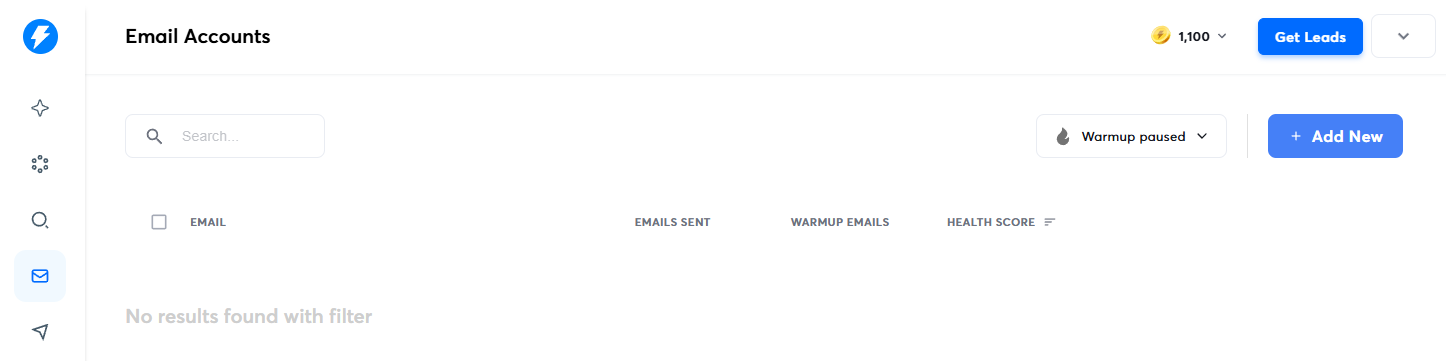
Step 3
Select Microsoft Office 365 / Outlook
In the "Connect existing accounts" card, select "Microsoft Office 365 / Outlook" as the account type.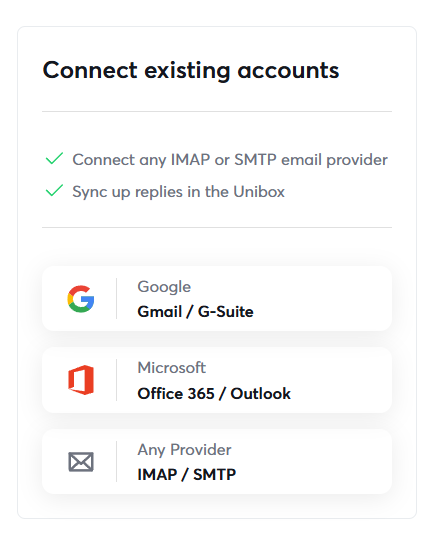
Step 4
Confirm SMTP is enabled
Click the "Yes, SMTP has been enabled" button to proceed.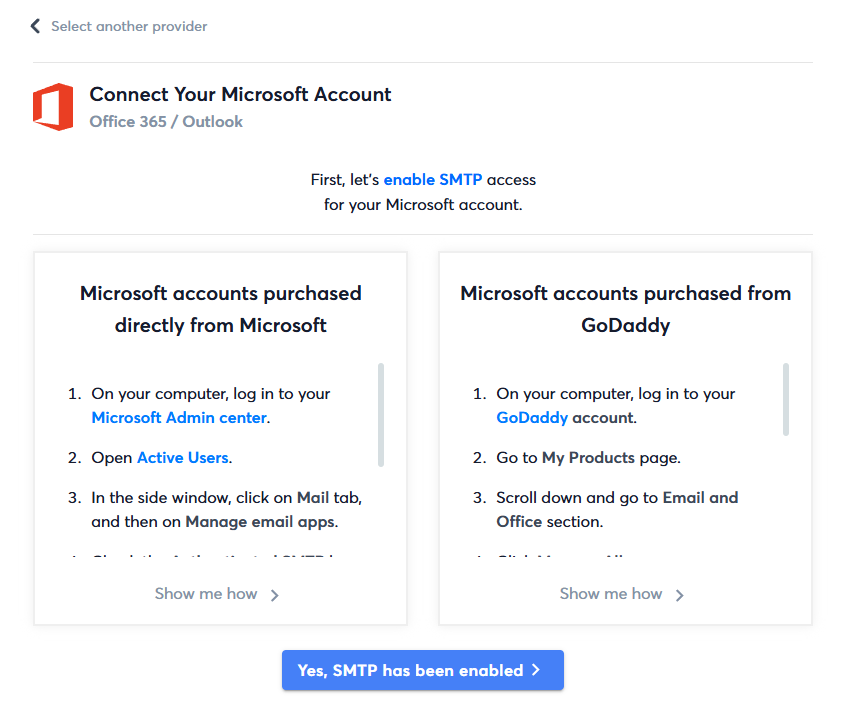
Step 5
Enter the mailbox email address
Type the full email address of the mailbox you're connecting, then click Next.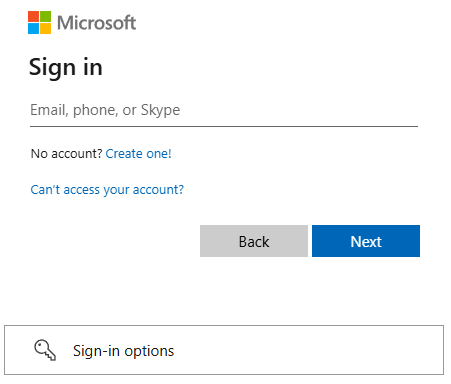
Step 6
Enter the mailbox password
Enter the password for that mailbox and click Next or Sign In to authenticate.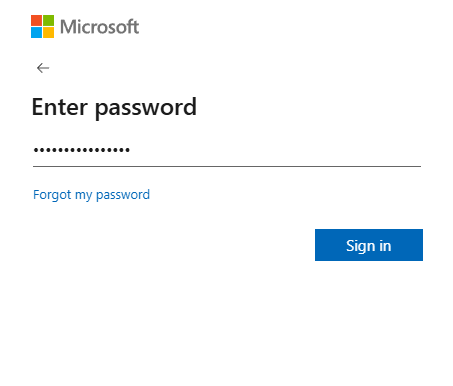
Step 7
Grant permission for Instantly
Consent on behalf of your organization and accept the permission request. Follow any remaining prompts to authorize Instantly to access your Microsoft account. Once complete, the mailbox will appear in your Accounts list as connected.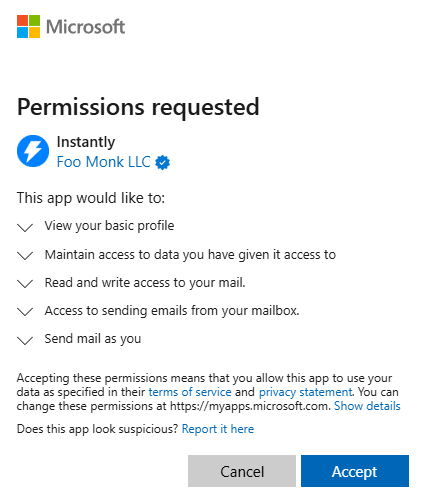
Where to go next
The most useful next step is usually either a deeper guide or a page that helps you compare provider fit.